Do you remember the last time you thoroughly cleaned the digital devices in your home office? With the rise of remote work and home offices becoming the norm, keeping your workspace clean is more important than ever. According to the Bureau of Labor Statistics, the average full-time employee spends about 25% of each week working from home. This means hours upon hours of interacting with computers, keyboards, mice, phones, and other digital accessories. Over time, these devices accumulate dust, dirt, germs, and food debris, which not only looks unsightly but can also impact device performance and your health.
Fortunately, keeping your electronic devices clean does not have to be difficult. By following a few simple, systematic steps, you can maintain a clean, organized, and hygienic home office. This guide will walk you through cleaning your computer screens, keyboards, mice, and other essential office electronics.
Why Cleaning Your Home Office Devices Matters
A clean workspace does more than just make your home office look appealing. Here are key reasons why cleaning your electronic devices is essential:
-
Reduces Germs and Bacteria: Keyboards, mice, and phones harbor bacteria that can lead to sickness. Regular cleaning helps maintain a healthier workspace.
-
Improves Device Longevity: Dust and debris can interfere with your devices’ functionality. Cleaning helps prevent damage and prolongs lifespan.
-
Boosts Productivity: A tidy environment encourages focus and reduces distractions caused by clutter or sticky surfaces.
-
Enhances Appearance: Clean screens and keyboards make your workspace look professional, especially for virtual meetings.
How to Clean Computer or Laptop Screens
Cleaning your computer or laptop screen requires careful handling to avoid scratches or damage. Here’s the step-by-step process:
-
Turn Off and Unplug: Always turn off your device and unplug it from the power source before cleaning to avoid electrical hazards.
-
Remove Dust: Use a dry microfiber cloth to gently wipe away dust, fingerprints, and smudges. Avoid paper towels, tissues, or abrasive cloths as they can scratch the screen.
-
Clean Stubborn Marks: For remaining smudges, mix a solution of equal parts rubbing alcohol and water. Spray the solution onto a microfiber cloth—not directly on the screen—and gently wipe the surface in circular motions.
Pro Tip: Avoid excessive moisture, which can seep into the edges and damage your screen. Microfiber cloths are reusable, eco-friendly, and ideal for cleaning screens safely.
How to Clean Your Keyboard
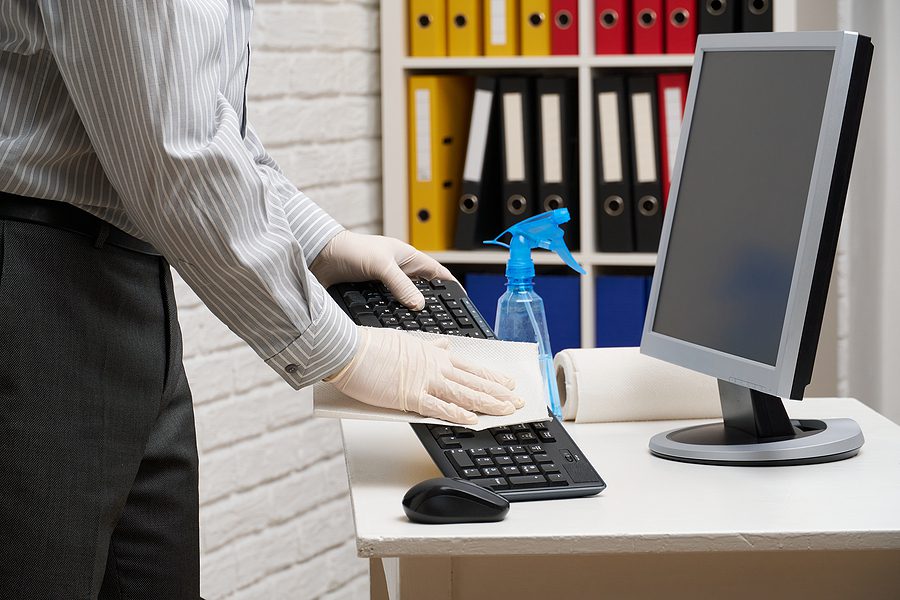
Keyboards are often the dirtiest devices in your home office. Food crumbs, skin oils, and dust accumulate between the keys, which can lead to unhygienic conditions. Here’s how to keep your keyboard spotless:
-
Shake Out Loose Debris: Gently flip the keyboard upside down and tap lightly to dislodge loose crumbs and dust. If using a laptop keyboard, ensure it is unplugged or powered off.
-
Use Compressed Air: A can of compressed air can blow out debris trapped between the keys. Move the can at an angle to reach all crevices.
-
Clean Key Surfaces: Dampen a cotton swab or a soft toothbrush with rubbing alcohol and carefully clean around each key. The swab should be moist, not soaking wet, to prevent liquid damage.
-
Polish and Dry: Wipe down the keyboard with a dry microfiber cloth to remove any residual moisture. Reconnect if it was unplugged.
Tip: For mechanical keyboards, consider removing keycaps for deep cleaning. This can prevent buildup under the keys and extend the keyboard’s lifespan.
How to Clean Your Computer Mouse
Mice, especially those used daily, can harbor dirt and germs. Cleaning a mouse is simple if done carefully:
-
Unplug Your Mouse: If it’s wired, disconnect it from the computer. For wireless mice, remove batteries if possible.
-
Remove Surface Debris: Use compressed air to remove dirt and crumbs from the crevices, especially around buttons and scroll wheels.
-
Wipe Down the Surface: Lightly dampen a microfiber cloth with rubbing alcohol or water and wipe the top, sides, and bottom. Be careful around sensor areas.
-
Dislodge Remaining Debris: For scroll wheels, gently shake or rotate them while wiping to release hidden dirt.
-
Final Polish: Wipe with a dry microfiber cloth for a clean, streak-free finish. Reassemble or reconnect your mouse.
Note: Avoid soaking your mouse, as liquid can damage internal components.
How to Clean Landline Phones
Even though smartphones dominate communication, many home offices still use landline phones. These devices are often touched frequently, making them potential germ hotspots:
-
Unplug Your Phone: Ensure the device is disconnected from any power source.
-
Clean the Receiver and Keys: Dip a cotton swab into rubbing alcohol and gently clean the receiver, keypad, and mouthpiece.
-
Wipe the Exterior: Spray a small amount of disinfectant on a microfiber cloth and wipe the entire phone. Never spray directly onto the device.
Extra Tip: For shared phones, clean multiple times per week to maintain hygiene.
Additional Tips for Maintaining a Clean Home Office
-
Regular Cleaning Schedule: Set aside time weekly to clean screens, keyboards, mice, and phones. Consistency prevents buildup.
-
Use Protective Covers: Keyboard covers and screen protectors can reduce dirt accumulation and make cleaning easier.
-
Wash Hands Frequently: Clean hands before using electronic devices to minimize oils and debris transfer.
-
Declutter Your Workspace: Removing unnecessary items reduces dust collection and creates a more organized environment.
-
Keep Cleaning Supplies Handy: Have microfiber cloths, cotton swabs, and cleaning solutions accessible for quick touch-ups.
Maintaining a clean home office is not only about aesthetics—it promotes health, protects your technology investment, and enhances productivity. By following these practical, easy-to-implement cleaning steps, you can ensure your electronic devices remain safe, hygienic, and fully functional.
Cleaning your home office devices should be a regular habit, not an occasional chore. Implement these tips today and enjoy a cleaner, safer, and more efficient workspace.